
Plugin description
- Latest version
- 3.6.0
- Minecraft
- 1.21.4 - 26.3
- Platforms
- Spigot, Paper, Folia, Purpur
- Minimum Java version
- 21+
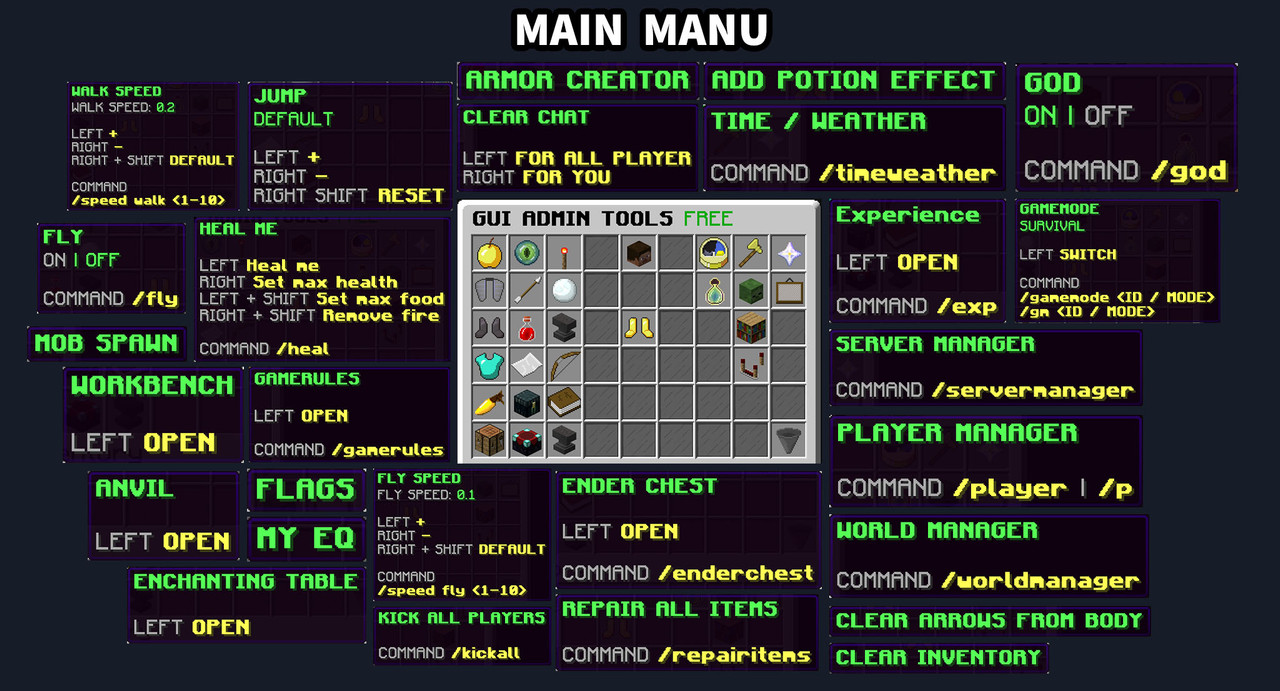
Main Menu – Available Tools:
✅ Anvil – opens a virtual anvil interface for repairing and combining items.
✅ Armor Creator – equips armour sets and applies supported enchantments through a GUI.
✅ Clear Arrows from Body – removes arrows stuck in the player’s body.
✅ Clear Chat – clears your own chat or the server chat when permitted.
✅ Clear Inventory – removes items from your inventory or a permitted target’s inventory.
✅ Enchanting Table – opens a virtual enchanting table.
✅ Ender Chest – opens your personal Ender Chest; permitted commands also provide access to online-player EnderChests.
✅ Experience Manager – displays, gives, sets, or resets experience for yourself or a selected online player.
✅ Fly – toggles flight on or off.
✅ Gamemode – switches between Survival, Creative, Adventure, and Spectator.
✅ God Mode – toggles invulnerability.
✅ Heal Me – restores health and hunger, removes fire, arrows, and active potion effects.
✅ Item Repair – repairs equipment that can be repaired.
✅ Jump Boost – adjusts jump strength where supported by the server.
✅ Mob Spawn – spawns supported mobs through a dedicated GUI.
✅ My EQ – opens your personal saved inventory.
✅ Potion Effects – applies, adjusts, and removes potion effects.
✅ Walk Speed & Fly Speed – adjusts movement speeds within defined ranges.
✅ Workbench – opens a virtual crafting table.
✅ Armor Creator GUI
Equip armour and apply the enchantments available on your server, right from the game.
- Armor Sets – choose from the armour sets available on your server version.
- Quick Equipping – equip a complete set or choose individual armour pieces through click actions.
- Enchantments GUI – select supported enchantments and apply them to your equipment.
- Item Repair – repair items that can be repaired, without replacing them by hand.
✅ Experience GUI
Manage your own XP or an online player’s XP with a few clicks.
- Current XP Display – check the amount of experience and reset it when needed.
- Quick Give – add experience through the GUI without typing a command.
- Set Exact EXP – enter a precise value through an Anvil prompt.
- Context-Aware – use the Main Menu for yourself or Player Manager for a selected player.
- Command Access – use
/exp show [PLAYER],/exp give <VALUE> [PLAYER], or/exp set <VALUE> [PLAYER]when permitted.
✅ Potion Effects GUI
Choose, adjust and remove potion effects from one menu, without looking up effect names or command syntax.
- Effect Browser – browse the available effects and select the one you need.
- Effect Settings – adjust duration and amplifier through the GUI.
- Apply or Remove – add selected effects or remove active ones.
- Clear All Effects – remove active potion effects when they are no longer needed.
- Version Awareness – effects unavailable on the running server are marked accordingly.
Player Management – Available Tools:
✅ Player Manager – browses saved players and opens their administration panel.
✅ Inventory & Ender Chest – views an online player’s inventory and provides permitted EnderChest access.
✅ Moderation – kicks, bans, unbans, and mutes selected players.
✅ Player Care – provides health, food, fire, experience, equipment, and movement tools.
✅ Teleport Tools – teleports between players, worlds, and coordinates.
✅ Staff Controls – manages OP status, whitelist access, and movement locks.
✅ Kick All Players – removes connected players through a confirmation action.
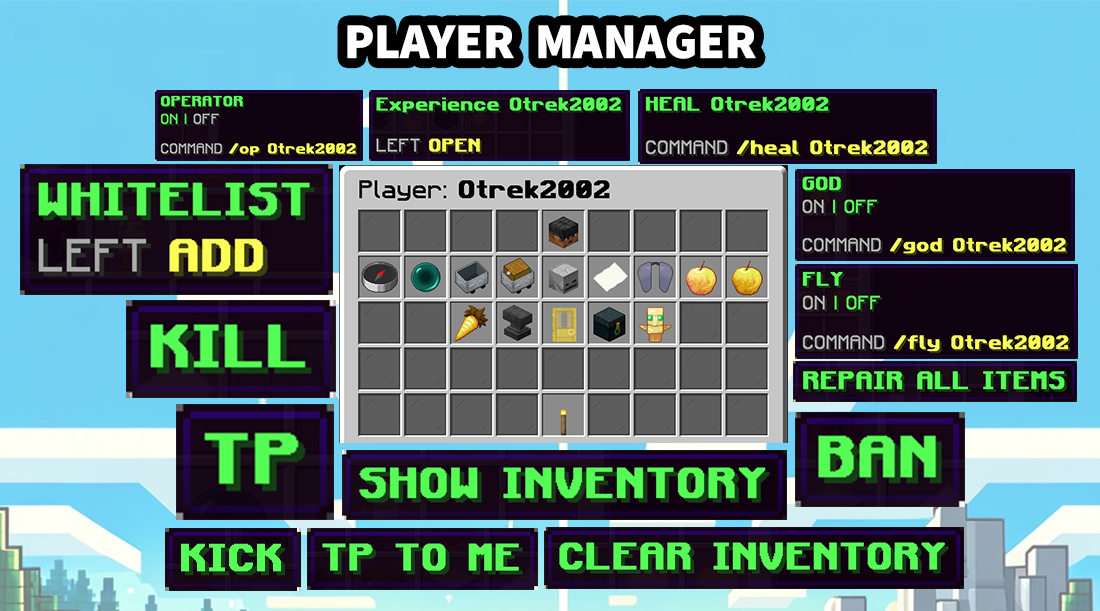
✅ Player Manager
Find a saved player, open their panel and handle everyday staff tasks in one place.
- Player Browser – find players using pagination, A–Z / Z–A sorting, and online, offline, or all-player filters.
- Player Controls – manage supported player settings such as gamemode, flight, God Mode, and movement speed.
- Player Care – heal players, manage food and fire, and access experience and effect tools.
- Inventory Tools – inspect an online player’s inventory, repair equipment, clear inventory, and remove arrows.
- Ender Chest Access – open an online player’s EnderChest when permitted.
- Teleport Actions – teleport to a player, bring them to you, or use the available teleport commands.
- Moderation – kick, ban, unban, or mute a selected player.
- Staff Controls – toggle OP or whitelist status and temporarily block movement while dealing with an incident.
Online-player tools: inventory, EnderChest, and other live player actions require a player who is online. Saved player entries remain available in the player browser for the supported moderation tools.
✅ Teleport & Cleanup Tools
Prefer typing in chat? The commands are still available alongside the menus.
- Player Teleports – teleport to another player or bring a player to you when permitted.
- World & Coordinate Teleports – move between worlds or travel to specified coordinates.
- Top – move to the top of your current location.
- Clear Inventory – clear your own inventory, a selected player’s inventory, or all online players’ inventories with the required permissions.
- Clear Chat & Arrows – clean up chat or remove arrows from player bodies.
Server & World Tools – Available Tools:
✅ Command Registration – enables or disables individual plugin commands.
✅ Fast Flags – controls gameplay and protection rules without WorldGuard or WorldEdit.
✅ Game Rules – browses and changes supported rules for the current world.
✅ Mob Spawn – spawns supported entities and provides mob cleanup tools.
✅ Server Manager – manages server controls, whitelist, and color-code settings.
✅ Time/Weather Manager – changes time and weather and controls their progression.
✅ World Manager – browses and manages custom worlds where runtime world operations are supported.
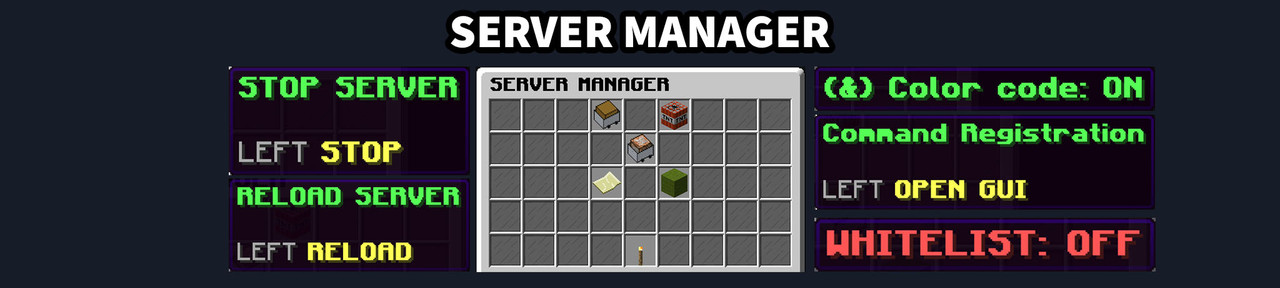
✅ Server Manager & Configuration Tools
Adjust common server settings in a dedicated panel. Critical actions ask for confirmation before they run.
- Command Registration GUI – choose which GUI Admin Tools commands are active.
- Whitelist Toggle – enable or disable the server whitelist.
- Color Code Toggle – control the plugin’s
&color-code feature.
- Protected Reload & Stop – confirm important actions before they are executed.
- Restart Support – use
/servermanager restart confirmwhen a valid restart script is configured.
- Separate Permissions – assign access to server controls independently from everyday player tools.

✅ World Manager & Creator
Browse and manage your custom worlds from the game, without opening server files for every change.
- World Overview – browse worlds and open the available management options.
- Creation Options – create Normal, Flat, Large Biomes, or Amplified worlds in Overworld, Nether, or End environments.
- Safe Naming – new worlds receive an available default name; existing world folders are not overwritten.
- Spawn Settings – set a world spawn and teleport to a selected world’s spawn.
- Rename & Remove – manage plugin-created worlds through protected in-game actions.
- Operation Checks – validates names and paths, moves players before removal, and prevents duplicate operations.
- Folia Limitation – creating, loading, unloading, renaming, and deleting worlds at runtime are unavailable on Folia.
✅ Time, Weather & Game Rules
Change the time, weather and game rules for your current world without leaving the menu.
- Time Presets – Day, Noon, Night, and Midnight.
- Weather Presets – Clear, Rain, and Thunder.
- Independent Locks – lock or unlock time and weather progression separately.
- Live World Status – see the current time and weather while the menu is open.
- Game Rules GUI – browse supported world rules without remembering their exact names.
- Boolean & Numeric Rules – toggle true / false values or adjust numbers using normal and Shift clicks.
- Clear Feedback – changed values refresh in the GUI and are confirmed in chat.
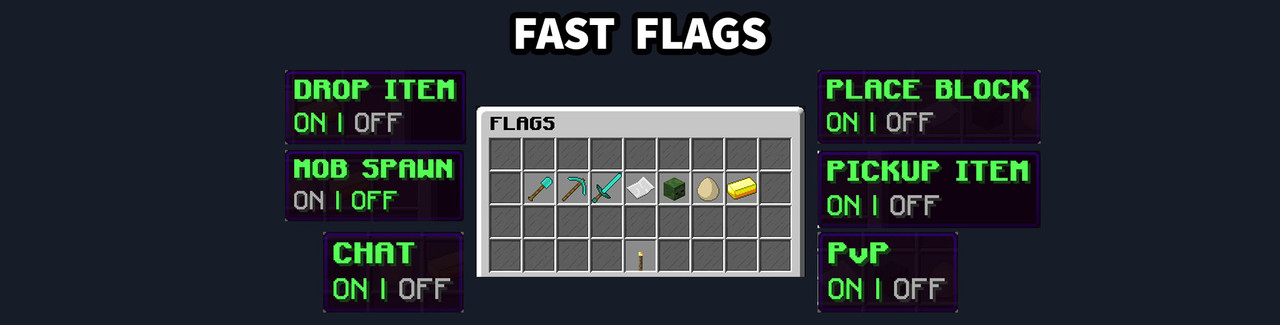
✅ Fast Flags GUI
Control gameplay and protection rules from one compact panel. It is handy for events, maintenance, dealing with griefing and everyday server work. WorldEdit and WorldGuard are not required.
- Block Placement & Breaking – controls block changes and hanging decorations.
- PvP, Chat & Mob Spawning – switches core gameplay behaviour on or off.
- Item Drop & Pickup – controls dropped items and item collection.
- Interactions & Explosions – controls interactions, TNT, entity explosions, and block explosions.
- Live Status – GUI items refresh after each change.
- Command Access – use
/fastflags <flag>for quick control through chat.
- State Restoration – native world settings changed by Fast Flags are restored when the plugin is disabled or a world unloads.
✅ Configuration & Saved Data
Settings and messages have their own files, so they are easy to find and edit.
- Config.yml – main settings, Fast Flags, command registration, color codes, and moderation defaults.
- Messages.yml – player-facing messages and action feedback.
- Worlds.yml – managed-world settings and spawn locations.
- myEQ.yml – saved My EQ inventories.
- PlayerData Folder – known-player data, including mute and movement-lock state.
- Default Values – missing default configuration and message values are restored while keeping custom entries.
✅ Safe Administration Workflows
- Confirmations – critical actions such as Kick All, reload, stop, and world removal require deliberate confirmation.
- Permission Separation – control self-tools, actions on other players, world management, and server controls independently.
- GUI Protection – menu actions are handled separately from normal inventory editing.
- Efficient Flag Checks – frequent Fast Flags checks use in-memory state instead of reading configuration files during gameplay events.
- Failure Feedback – unsupported or failed actions return a player-facing message.