

Plugin description
GUI Admin Tools PREMIUM
Players • Worlds • Chat • Protection • Permissions
Players • Worlds • Chat • Protection • Permissions
Manage your Minecraft server from clear, practical menus. GUI Admin Tools PREMIUM brings players, worlds, chat, protection, permissions, kits and server settings together, so you can handle everyday administration without memorising long commands.
- Permission-ready design – GUI tools and direct commands have separate permission nodes, so access can be granted independently.
- Safe GUI workflows – confirmations protect destructive actions, and live editors keep player inventories and returned items safe.
Optional Integrations
- Vault / Economy plugin – economy management and optional built-in Vault economy provider.
- LuckPerms – visual permission management for users and groups.
- WorldEdit + WorldGuard – WorldGuard region creation and flag management from the GUI.
- Essentials / EssentialsX – optional command integration when detected.

Configurable GUI Icons
Customise an icon’s name, lore (description) and material in the YAML files. GUI icons support HEX colors and the & and § color codes, making it easy to match the menus to your server’s style.
Main Menu – Available Tools
- Anvil – Opens a virtual anvil interface for repairing and combining items.
- Armor Creator – Gives a complete armour set and available enchantments through a GUI.
- Attack Damage – Adjusts a player’s base attack damage multiplier.
- Clear Arrows from Body – Removes arrows stuck in the player’s body.
- Clear Inventory – Removes all items from the player’s inventory.
- Enchanting Table – Opens a virtual enchanting table.
- Ender Chest – Opens your personal Ender Chest.
- Experience Manager – Adds, removes, sets, or resets experience.
- Fly – Toggles flight on or off.
- Gamemode – Switches between Survival, Creative, Adventure, and Spectator.
- God Mode – Toggles invulnerability.
- Heal Me – Restores health and hunger, removes fire, arrows, and active potion effects.
- Home – Teleports to a personal home location (Shift-Left: set, Shift-Right: remove).
- Item Editor – Renames items, edits lore, manages enchantments, repairs items, and toggles item flags.
- Item Repair – Repairs the held item or all inventory and armour items.
- Jump Boost – Adjusts the player’s jump strength multiplier.
- Max Health – Adjusts the player’s maximum health.
- Mob Spawn – Spawns mobs through a dedicated GUI.
- My EQ – Opens a personal equipment and inventory view.
- Potion Effects – Adds, changes, and removes potion effects.
- Spawn – Teleports to the server spawn (Shift-Left: set, Shift-Right: remove).
- Top – Teleports to the highest safe block at the current position.
- Vanish – Hides or shows the player.
- Walk Speed & Fly Speed – Adjusts movement speeds within defined ranges.
- Workbench – Opens a virtual crafting table.

Armor Creator GUI
Equip armour and manage enchantments with a few clicks.
- Armor Sets (Leather → Netherite)
- Double-click: equip the complete set.
- Left / Right / Shift-Left / Shift-Right: equip a selected helmet, chestplate, leggings, or boots.
- Double-click: equip the complete set.
- Enchantments GUI – choose an enchantment, select its level, and apply it instantly to the equipped item.
- Clear Armor – removes all equipped armour with one click.

Experience GUI
Adjust your own XP or a selected player’s XP from a simple menu.
- Live XP Display – shows the current amount; click it to reset XP to 0.
- Quick Give – Left: +1, Right: +10, Shift-Left: +100, Shift-Right: +1000.
- Set Exact XP – enter a precise value in an Anvil prompt.
- Context-Aware – works from the Main Menu for yourself and Player Manager for a selected player.

Potion Effects GUI
Choose a potion effect, set its duration and strength, then apply or remove it right away.
- All Effects List – browse every effect available on the server.
- Left-click: apply the selected effect.
- Right-click: remove it when active.
- Left-click: apply the selected effect.
- Duration Control – toggle infinity or adjust time by ±1s, ±10s, ±100s, or ±1000s.
- Amplifier Control (0–9) – Left-click increases, Right-click decreases.
- Clear All Effects – removes every active potion effect with one click.

Item Editor GUI
Edit Minecraft items directly in-game with a drag-and-drop workbench.
- Live Preview – put the item in the centre slot and see each change immediately.
- Rename – set a new display name with a simple Anvil prompt.
- Enchantments – browse a paged A–Z list, select a level, or remove all enchantments.
- Lore Editor – add, edit, or remove lore lines through a dedicated GUI.
- Repair – fully repairs eligible tools and armour.
- Toggle Flags – hide or show item attributes such as Unbreakable and enchantment information.

Player Menu – Available Tools
- Banlist – browses and manages player and IP bans.
- Kick All Players – removes all connected players after a Shift-Right confirmation.
- Kit – lets players browse, preview, and claim kits.
- Kit Manager – creates, edits, and manages kits.
- Player Manager – opens full player administration, inventories, statistics, and settings.
- Mute All – Left: mute all players, Right: unmute all players.

Player Manager
Find saved players with paginated lists, A–Z / Z–A sorting and online, offline or all-player filters. Select a player to open their administration panel.
- Player Controls – change gamemode, fly, god mode, walk/fly speed, health, attack damage, and jump strength.
- Moderation – kick, kill, mute, ban, block movement, block commands, block elytra use, toggle OP status, and manage whitelist access.
- Player Data – view statistics, first join data, last death location, logout location, home, personal spawn, and player skull.
- Teleport Actions – teleport to the player, bring the player to you, or travel to their saved home, spawn, last death, or logout location.
- Inventory & Ender Chest Editor – safely view and edit a connected player’s inventory or Ender Chest. Slot changes are synchronised with the target and returned items are protected if the GUI closes or a player disconnects.
- Player Economy – manage the selected player’s balance when Vault/economy support is available.

Economy Manager
Adjust a selected player’s balance with a few clicks, using Vault economy support.
- Live Balance Display – refreshes after every change.
- Quick Give / Take – Left: 1, Right: 10, Shift-Left: 100, Shift-Right: 1000.
- Safe Reset – Shift-Right on RESET returns the balance to 0.
- Direct Access – open it with
/ecomgr <PLAYER_NAME>or from Player Manager.

Statistics
View a player’s Minecraft statistics in a read-only menu, with no risk of moving items by mistake.
- Wide Stat Coverage – first join, deaths, damage, movement, mob/player kills, play time, raids, villager interactions, and more.
- Direct Access – use
/statistics <PLAYER_NAME>or open it from Player Manager.
- Clear Navigation – return directly to the selected player’s settings after checking statistics.

Kits
Browse, preview, claim and manage kits from one menu system.
- Player Kit Browser – paged and sortable kit list with instant claim and preview actions.
- Full Preview – preview armour, offhand, hotbar, and inventory before claiming.
- Cooldowns & Permissions – set per-kit cooldowns and optional permissions.
- Kit Manager – create a kit from your current inventory, edit every slot, set an icon, choose inventory clearing, and remove kits with confirmation.
- Commands –
/kit,/kit <KIT_NAME>,/kitmanager, plus manager subcommands for quick access.

Ban Manager
Manage player and IP bans step by step through the GUI, without typing out punishment commands.
- Player Selection – choose a target from a paged list and open their ban manager.
- Profile or IP Ban – switch the punishment type directly in the menu.
- Permanent or Temporary Bans – choose permanent punishment or adjust the exact expiry date.
- Custom Reason – enter a reason through an Anvil prompt.
- Pardon & Ban List – unban safely with confirmation, browse active bans, sort them, and inspect reason and expiry data.
- Commands –
/ban,/unban,/unbanip, and/banlist.

Server & Plugin Menu – Available Tools
- Chat Manager – chat moderation, logs, analytics, color codes, and Anti Caps Lock.
- Fast Flags – global gameplay and protection controls.
- Game Rules – per-world game rule management.
- Join/Leave Manager – join messages, titles, effects, and locations.
- LuckPerms Manager – visual permission management when LuckPerms is installed.
- Regions – built-in protected regions with GUI position tools.
- Server Manager – server-wide controls, configuration management, and whitelist tools.
- Time/Weather Manager – time, weather, and independent locks for the current world.
- World Manager – custom world overview, settings, creation, and maintenance where runtime world operations are supported.
- WorldGuard Regions – WorldGuard region and flag management when WorldGuard and WorldEdit are installed.


Server Manager & Configuration Tools
- Command Registration GUI – enable or disable plugin commands from a clear, categorized menu. Availability changes are saved immediately.
- Config Manager GUI – reload Config.yml, tool/icon settings, player data, and regions; validate YAML files; create dated backups; and restore defaults through confirmation safeguards.
- Server Controls – reload, restart, stop, save worlds and player data, manage the whitelist, clean entities while keeping players safe, change plugin language, and edit the MOTD.
- Economy Provider Switch – optionally use the plugin as a Vault economy provider; the GUI clearly states when a restart is needed.
- Whitelist Manager – paged player list with online filters, sorting, add/remove actions, and confirmations.

World Manager & Creator
Browse, create, load and configure managed worlds from one GUI. World information is saved between server restarts.
- World Overview – paginated A–Z / Z–A list, loaded/unloaded state, environment details, safe teleport to spawn, and direct settings access.
- Manual Naming – set a clean custom world name through an Anvil input; no forced auto-naming.
- Creation Options – choose NORMAL, FLAT, LARGE_BIOMES, or AMPLIFIED worlds with OVERWORLD, NETHER, END, or CUSTOM environments.
- Generation Setup – set a seed, structures, hardcore mode, flat presets, a custom generator, a custom biome provider, or copy creation settings from a loaded world.
- Runtime Settings – change difficulty, PvP, autosave, monsters, animals, spawn chunk radius, and optional pregeneration radius.
- Chunk Pregeneration – prepare the selected spawn area with a progress BossBar to reduce first-visit lag.
- World Maintenance – set the spawn, enable/disable managed worlds, select a server default world, rename where supported, and delete through confirmation safeguards.
- Folia limitation – creating, loading, unloading, renaming, and deleting worlds is unavailable while the server is running.
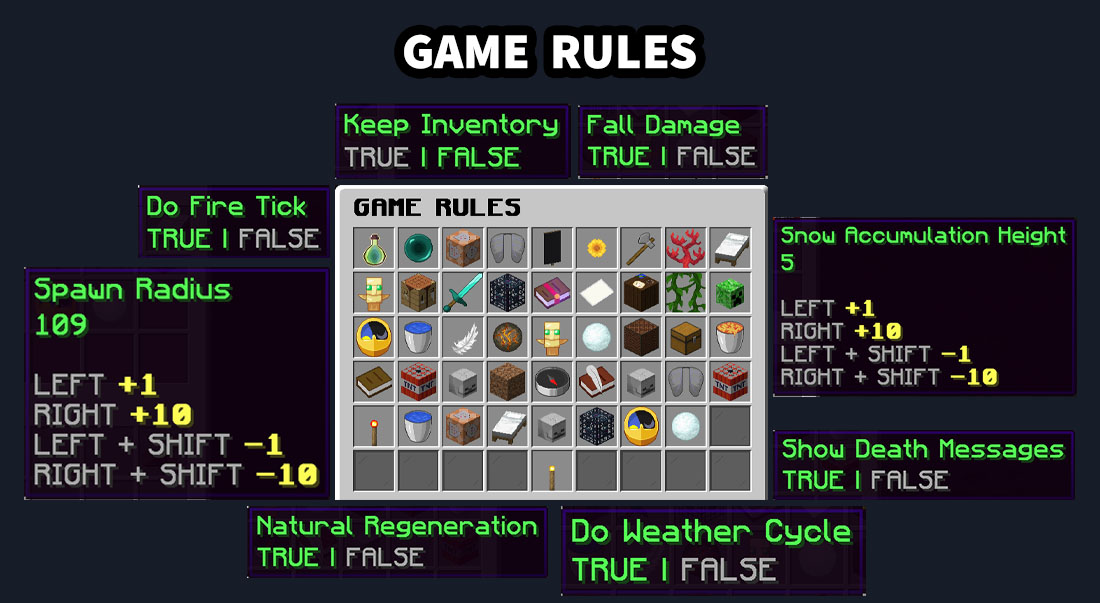
Time, Weather & Game Rules
Change the time, weather and game rules for your current world from the menu.
- Time Presets – Day, Noon, Night, and Midnight.
- Weather Presets – Clear, Rain, and Thunder.
- Independent Locks – freeze the current time and weather separately, then switch either lock on or off at any time.
- Game Rules GUI – browse the available world game rules in a clean paged layout.
- Boolean Rules – enable or disable with one click.
- Numeric Rules – Left: +1, Right: +10, Shift-Left: -1, Shift-Right: -10.


Chat Manager
Moderate chat, adjust safety settings and review logs and statistics in one panel.
- Clear Chat – reset the public chat with one click.
- Chat Filter – masks words from a configurable blacklist.
- Slow Mode – sets a per-player message delay to reduce spam.
- Global Chat Mute – blocks public chat while allowing authorised staff bypass permissions.
- Anti Caps Lock – converts excessive upper-case messages into a normal readable form; threshold and bypass are configurable.
- Color Codes – optionally allow color-code chat for authorized players and choose the code character.
- Chat Logs – browse saved messages by newest or oldest and remove entries directly from the GUI.
- Chat Statistics – view total messages, unique chat participants, and recent chat activity.

Join/Leave Manager
Choose what happens when players join for the first time, return or leave, all from an in-game menu.
- Message Toggles – enable or disable first-join, join, leave, and title messages independently.
- Quick Text Editing – edit each message, title, and subtitle through Anvil prompts.
- Join Effects – enable or disable fireworks, sounds, and particles from the GUI.
- Join & First-Join Locations – teleport to, set, or remove a normal join location and a separate first-join location.
- Live Behaviour – apply configured messages, titles, teleportation, sounds, particles, and fireworks automatically when a player joins.

Fast Flags GUI
Set global gameplay and protection rules from one compact panel. No WorldEdit or WorldGuard is needed.
- Global Flags – block placing, breaking, PvP, command use, mob spawning, item drops, item pickup, item use, interaction, explosions, fire spread, fall damage, and entity damage.
- One-Click Switching – turn each flag ON or OFF instantly with live GUI refresh.
- Switch All – Left-click enables all flags; Right-click disables all flags.
- Command Access – use
/fastflags <flag>for fast control from chat.

Built-In Region Manager
Create and manage protected regions without an extra protection plugin.
- Paged Region Browser – browse saved regions with A–Z, Z–A, or default sorting.
- Quick Creation & Editing – create a region, select it, and open its settings immediately.
- Position Tools – Left-click sets Pos1/Pos2 to your current location; Right-click teleports to the saved position.
- Region Flags – control block placement, block breaking, PvP, chat, mob spawning, item drops, and item pickup per region.
- Safe Removal – Shift-Right removes a region to reduce accidental deletion.
- Commands –
/region,/region new,/region edit <ID>, and/region remove <ID>.

WorldGuard Region Manager
With WorldGuard and WorldEdit installed, you can manage WorldGuard regions and flags entirely from the GUI.
- Region Browser – lists current-world regions with sorting, pagination, min/max corners, and active flag count.
- WorldEdit Integration – use your WorldEdit pos1/pos2 selection to create a WorldGuard region and set its name with an Anvil input.
- Safe Operations – clear flags or remove a region only through confirmation actions.
- Flag Categories – Related Protection, Mobs/Fire/Explosions, Natural Events, Movement/Messaging, and Map-Making/QoL.
- Live Saving – changes are written directly to WorldGuard’s storage.
LuckPerms Manager
The LuckPerms manager becomes available as soon as the plugin is detected.
- User & Group Browser – choose a LuckPerms user or group from paged, sortable lists.
- Visual Permission Editor – manage GUI Admin Tools permission nodes from organised Main Menu, Player Menu, Server/Plugin Menu, Player Manager, and Join/Leave categories.
- Live Permission Changes – apply permission changes directly to the selected LuckPerms holder.
- Clear Navigation – move between permission categories and return to the selected user or group easily.
INSTALLATION
- 1. Stop the server.
- 2. Put the plugin JAR into
../server/plugins.
- 3. Start the server and configure permissions and optional integrations as needed.
- 4. Open the main menu with
/ator use the individual commands.
Enjoy!
